Jobs in Pakistan: http:jobs.pakcat.com/

Showing posts with label Docs. Show all posts

Thursday, May 3, 2012

Google is introducing Google Drive!

Today, we’re introducing Google Drive—a place where you can create, share, collaborate, and keep all of your stuff. Whether you’re working with a friend on a joint research project, planning a wedding with your fiancĂ© or tracking a budget with roommates, you can do it in Drive. You can upload and access all of your files, including videos, photos, Google Docs, PDFs and beyond.
With Google Drive, you can:
  • Create and collaborate. Google Docs is built right into Google Drive, so you can work with others in real time on documents, spreadsheets and presentations. Once you choose to share content with others, you can add and reply to comments on anything (PDF, image, video file, etc.) and receive notifications when other people comment on shared items.
  • Store everything safely and access it anywhere (especially while on the go). All your stuff is just... there. You can access your stuff from anywhere—on the web, in your home, at the office, while running errands and from all of your devices. You can install Drive on your Mac or PC and can download the Drive app to your Android phone or tablet. We’re also working hard on a Drive app for your iOS devices. And regardless of platform, blind users can access Drive with a screen reader.
  • Search everything. Search by keyword and filter by file type, owner and more. Drive can even recognize text in scanned documents using Optical Character Recognition (OCR) technology. Let’s say you upload a scanned image of an old newspaper clipping. You can search for a word from the text of the actual article. We also use image recognition so that if you drag and drop photos from your Grand Canyon trip into Drive, you can later search for [grand canyon] and photos of its gorges should pop up. This technology is still in its early stages, and we expect it to get better over time.
You can get started with 5GB of storage for free—that’s enough to store the high-res photos of your trip to the Mt. Everest, scanned copies of your grandparents’ love letters or a career’s worth of business proposals, and still have space for the novel you’re working on. You can choose to upgrade to 25GB for $2.49/month, 100GB for $4.99/month or even 1TB for $49.99/month. When you upgrade to a paid account, your Gmail account storage will also expand to 25GB.Drive is built to work seamlessly with your overall Google experience. You can attach photos from Drive to posts in Google+, and soon you’ll be able to attach stuff from Drive directly to emails in Gmail. Drive is also an open platform, so we’re working with many third-party developers so you can do things like send faxes, edit videos and create website mockups directly from Drive. To install these apps, visit the Chrome Web Store—and look out for even more useful apps in the future. This is just the beginning for Google Drive; there’s a lot more to come. Get started with Drive today at drive.google.com/start and follow us on Google Plus.

Friday, February 24, 2012

Easy collaboration anywhere with the updated Google Docs for Android

As I was sitting on the ferry commuting to Google’s Sydney office this morning, two thoughts occurred to me. First, Australia is beautiful. If you’ve never been here, you really should visit. And second, it’s amazing how productive I can be with just my Android phone and an Internet connection. I was responding to email, reading news articles, and editing documents--just like I do at the office. Only the view was better!
We want to give everyone the chance to be productive no matter where they are, so today we’re releasing a new update to the Google Docs app for Android. We've brought the collaborative experience from Google Docs on the desktop to your Android device. You'll see updates in real time as others type on their computers, tablets and phones, and you can just tap the document to join in.

We also updated the interface to make it easier to work with your documents on the go. For example, you can pinch to zoom and focus on a specific paragraph or see the whole document at a glance. We also added rich text formatting so you can do things like create a quick bullet list, add color to your documents, or just bold something important. Watch the new Google Docs app in action:

If you want to hear about the latest Docs news or send us feedback on the new app, visit Google Docs on Google+.

Wednesday, February 8, 2012

Google Docs in January: Styles, Sparklines, Google+ sharing, and more

One of the best things about working on web apps like Google Docs is that it gives us the flexibility to frequently bring you new features and improvements. Starting this month, we’re going to make some small changes to how we communicate what’s been happening in the world of Docs. Instead of writing blog posts for each and every minor update, we're going to try bundling them together monthly to give you a detailed overview of our favorite features and a short list of other notable changes to make sure you don't miss out on anything new.

On that note, we’ve got a bunch of new features that launched today, as well as some great things that improved over the month of January.

Customizable styles in documents
Giving your document consistent and beautiful formatting should be easy. Before today, if you wanted to update all the Subtitles in your document to look a particular way, you had to change each of them one at a time. That’s too many steps. Now you can restyle all your regular paragraphs, headings, or titles with just a couple clicks. For example, if you want to update all the Subtitles in your document to be a particular size, set one Subtitle to that size, select it, right click and choose Update Subtitle to match selection. This will change all the Subtitles already in your document and automatically update the style for any new Subtitles you create. Plus, with the new Options menu in the styles dropdown, you can set the current document’s styles as the default for new documents or you can load your default styles into the current document.

Sparklines in spreadsheets and more charting options
In Google spreadsheets, we’ve added more charting options and support for sparklines to make it easier to communicate data. The new options give you a bunch of tools to create more sophisticated charts including different Y-axes on either side of the chart, formatting options for the axis and title text, and all sorts of other customization for how your lines, bars, or pies are displayed. We’ve also added sparklines, which let you display line or bar charts inside of cells and are handy for presenting and comparing data in a simple, bite-sized way. In the example below, we’ve used sparklines to plot currency exchange rates over a 30-day period.


Sharing forms on Google+
Sharing the forms you create in Google Docs with the right people shouldn’t be a hassle. Today we added a Google+ share to the form editor so that you can share your forms directly with your circles with just a couple clicks.


And there’s more…
On top of today’s new features, here are some changes from January that you may have missed:
  • Adding images to your docs from a high quality stock photo gallery. Simply go to Insert > Image, select Stock photos, and then search for the images that you want.
  • A more streamlined format for document discussion notifications that batches multiple discussions into a single email.
  • Quickly opening and selecting items from specific menus with keyboard accelerators. For example, when using Google Chrome, Ctrl+Option+E on a Mac and Alt+E on Windows or Linux will open the Edit menu.
  • Copying and pasting via the context (right click) menu in documents when you have the Chrome App installed.
  • Easily adding Google drawings or Google Groups discussions to a Google Site from the Insert menu.
  • Progress bars while uploading files to Google Sites.
  • Searching for text inside of PDFs in your documents list using Optical Character Recognition.
If you’d like to learn more about what we’ve been up to in January, I’ll be doing a Hangout On Air later this week this to talk about these changes and listen to your feedback. Stop by our Community Manager Teresa’s Google+ page on Thursday, February 9 at 12 p.m. EST (Pakistan Time 10 p.m)  to tune in.

Thursday, February 2, 2012

Updates to Google Docs app for Android: Offline access and improved tablet experience

There may be times when you don’t have an Internet connection on your Android device, but you still want access to a file you’ve saved in Google Docs. Now you can select any file in Google Docs to make it available offline. So regardless of whether you’re connected to the internet, you’re always connected to those files.

Even better, Google Docs automatically updates your offline files when you’re on Wi-Fi. You can also manually update files anytime you have a data connection by opening the file or tapping ‘Update’ from the Offline section of the app.
  
Make file available offlineUpdate online file

Make file available offline
Update offline file 
For those of you with Android tablets, we’ve also improved the Google Docs reading experience. Now, when you open a Google document on your tablet while online, you’ll get a high-resolution version of the document. Swipe left and right to flip between pages, or use the slider at the bottom to page ahead quickly.

New reading layout on Android tablet


You can learn more about offline capabilities and the new reading layout in our Help Center.

Whether you’re offline or online, these improvements will make it easier to be productive from anywhere.

Friday, October 21, 2011

A fresh start for Google presentations : Google Docs

A year and a half ago, we released completely new document, spreadsheet and drawing editors. Google Docs has been picking up speed ever since with more than 60 new features and millions of new users. Today we’re rounding out the suite by previewing a new version of presentations with faster collaboration and more features.

A collaborative approach 

Presentations are made to be shared—whether it’s presenting your thesis to your professors or inspiring colleagues at a conference. And the best presentations are made together, collaborating with others to build a compelling story that captivates your audience. Creating presentations together is easy because you can:
  • See exactly what others are working on with colorful presence markers
  • Edit with your team members simultaneously from different locations
  • Use revision history to see who made changes or to revert to earlier versions
  • Say hello, start a conversation or share new ideas using built-in chat

More than 50 new features
In the new presentations, we’ve added many of your most requested features, including:
  • Transitions to move between slides with simple fades or spicier 3D effects
  • Animations to add emphasis or to make your slides more playful
  • New themes to create beautiful presentations with distinct visual styles
  • Drawings to build new designs, layouts, and flowcharts within a presentation
  • Rich tables with merged cells and more options for adding style to your data


What’s next
We’re gradually rolling out the new presentations. To get an early start, click on the gear icon in your document list, and select Document settings. Then, from the editing tab, check the box to “Create new presentations using the latest version of the presentation editor.” Learn more about getting started with the new presentation editor over at our Help Center.
Many of the new features were built using technologies that are only available in modern browsers. If you’re using an older browser you’ll be able to view, but not edit, the new presentations.

With today’s launch, the Google Docs suite is now built on a single, solid foundation. Now that the groundwork is in place, you can expect more useful and collaborative features, delivered faster than ever before.


Follow us on twitter @pakgoogl and on facebook

Wednesday, September 14, 2011

This week in Docs: Format painter, Google Fusion Tables, and drag & drop images

This week in Docs, we’re introducing three new tools that put the fun in functional.

Format painter in Google documents

First, we’ve added a format painter to help you copy formatting within Google documents. The new format painter allows you to copy the style of your text, including font, size, color and other formatting options and apply it somewhere else in your document. To use the format painter, select the text for the formatting you want to copy, press the paintbrush button in your toolbar, and then select the text where you want to apply that formatting.

If you double-click on the format painter icon, you’ll enter a mode that lets you select multiple sections of text so you can apply the same formatting to each section.

You can also use keyboard shortcuts for format painting: Ctrl+Option+C will copy the style of your selected text and Ctrl+Option+V will apply any copied styles to whatever text you have selected.

Google Fusion Tables in documents list

With this week’s update, we’re also integrating Google Fusion Tables into your documents list. Google Fusion Tables is a data management web application that makes it easy to gather, visualize and collaborate on data online. Now you’ll be able to store and share your Fusion Tables with the rest of the files in your documents list.

Recently, people have used Google Fusion Tables to:

Visualize evacuation zones for New York City during Hurricane Irene

Host data sets made public by the State of California

Gather data from local flu shot clinics for Google Flu Vaccine Finder

Map shelters and road status during the tsunami crisis in Japan
Go to Create new > Table from your documents list menu to get started visualizing or sharing tables of data in .csv, .xls or .kml files.


We're working on making Google Fusion Tables available to Google Apps customers and will let you know as soon as they are. Take a tour to learn more about Google Fusion Tables.

Drag & drop images in Google drawings

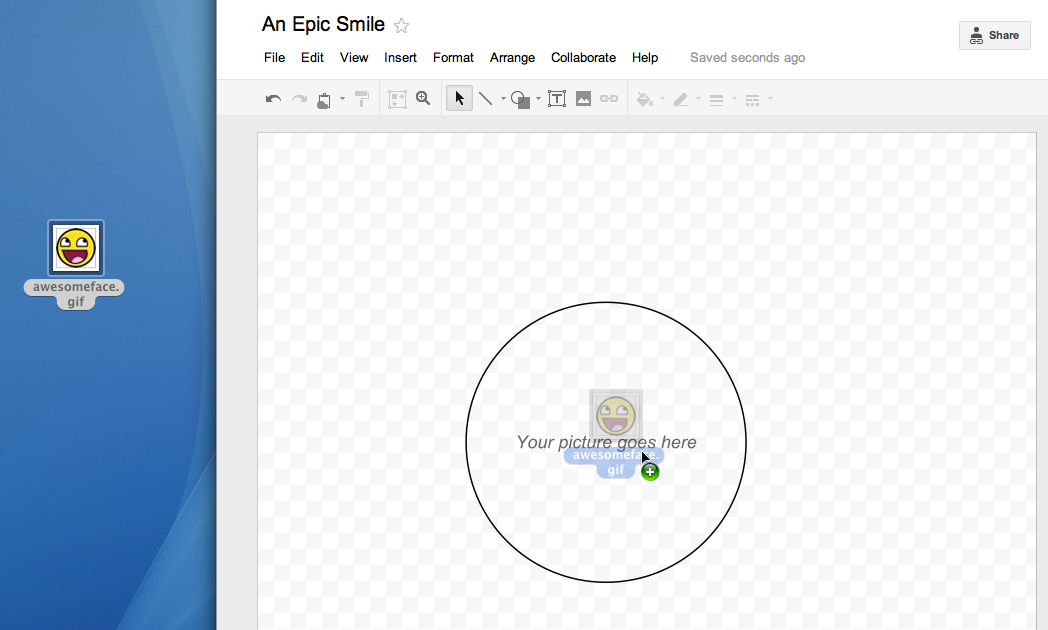
We also made it easier to add images from your desktop to Google drawings. If you’re using the latest version of Chrome, Safari, or Firefox, you can now drag an image from your desktop and drop it directly in the drawing canvas.


Give these tools a try and let us know what you think in the comments.

Thursday, August 25, 2011

The Google Docs app for Android now with Web Clipboard and in 46 languages

In April, we introduced the Google Docs app for Android , which allows you to access and create new docs on the go, directly from an app on your Android phone. Since then, we’ve continued to work on ways to improve your mobile experience, and I’m excited to share a couple of new updates that we hope will do just that.

Starting today, you can easily take pictures with your Android phone and insert them into a Google document, using the new Web Clipboard feature. Here’s how:

1. From the Docs widget on your phone, tap the camera icon.

2. Snap a photo then select Send to Web Clipboard and press OK.


3. Open any Google document from your computer. Click the Web Clipboard icon and select the item to paste into your doc.


A couple of other new features for the Android app include improved open and send options. You can open your documents with any compatible viewer application or send a doc as an attachment through email or another app on your phone.

Last but certainly not least, we’re making the Docs app available in 45 additional languages so more users around the world can access, share and edit on the go. Here’s an example of what the app looks like in German:


You can grab the app from Android Market and learn more by visiting the help center . As always, let us know what you think in the comments or on the forum.

Wednesday, August 10, 2011

Making Google spreadsheet functions easier to discover and use

From the simple SUM function to GoogleLookup, Google spreadsheets continues to add features that help you power through data. But sometimes it can be a challenge to find the one you need to use or figure out the right way to use it. We’ve made the following improvements to help you quickly discover and understand all of the powerful functions that Google spreadsheets has to offer.

Help snippets directly in spreadsheets
You shouldn’t have to interrupt your work to figure out how to build a particular formula, which is why we’re bringing help documentation directly into Google spreadsheets.

As soon as you start typing a formula into a cell, you’ll notice an auto-suggest box with the name and syntax of the function you might be looking for. Mouse over any of the suggested functions, and you’ll see a description that explains the function, its syntax, and how it’s used. You’ll also see links to related content and a link to the complete list of functions.


Auto-suggest displays syntax and help documentation for all 300+ available functions and even recognizes nested functions, making it easier to build complex formulas.

Revamped help documentation in the Google Docs Help Center
We’ve also completely rebuilt our help documentation for Google spreadsheet functions with invaluable input from some of our most active forum users such as ahab, yogia1, Ted J, A.P.L, MarinusP, and other forum Top Contributors. Here’s a look at what’s new:

A completely new table for browsing help documentation for all 300+ Google spreadsheets functions. This table is easy to browse, sort or search. To view the table, you can visit the Google Docs Help Center, click the complete list of functions link in the auto-suggest help snippets, or select Help > Function list in any Google spreadsheet.
Help documentation for nearly 60 new functions and formulas.
More detailed help documentation, including better instructions for some of our most sophisticated and complex functions.All of these improvements are now in English, and will be available in additional languages in the coming weeks.

So take advantage of these new resources at your fingertips and you’ll be a Google spreadsheets ninja in no time.

Thursday, July 21, 2011

This week in Docs and Sites: A spreadsheets shortcuts menu, PPTX support and more

This week, we’re introducing a number of enhancements to Google Docs and Sites: a spreadsheets shortcuts menu, support for PPTX conversion, a new RSS gadget, and improved mobile rendering for Sites.

Spreadsheets shortcuts
Although shortcuts have long been available in your Google spreadsheets, we've added a shortcuts menu to spreadsheets to make them easier to find -- saving you even more time. Hit Ctrl+/ (or Cmd+/ on a Mac) to pull up the list of shortcuts and learn new ways to sharpen your spreadsheet skills. Remember that shortcuts can vary depend on the operating system and browser you're using -- the example below is the menu you’d see if you were using a Chrome browser on a Mac.


Support for conversion of PPTX files to Google presentations
Starting today, you can convert PPTX files to Google presentations by either uploading the file from your desktop or converting the file from your documents list. Just follow the same simple steps as you normally would when converting files to Google Docs formats.

Better customization for your RSS Gadget in Sites
We’ve also added a new RSS gadget for Google Sites to our “Featured” gallery.

The new RSS gadget gives you complete control over the appearance of the gadget: You can customize any aspect of the feed, including font, color, size, number of items to display, and post length.

To set your gadget, go to Insert > More Gadgets > Featured, and look for RSS Feed.

Improved mobile rendering


After we released our initial version of Google Sites automatic mobile rendering, you enabled the option for over 50,000 sites, making it clear that you’re looking for a better way to easily publish content for mobile devices.

Based on what you’ve told us, we’re adding the additional behaviors to make automatic mobile rendering on Google Sites even better, including:

Images and header logos automatically scale in mobile mode
Gadgets and text boxes have widths that fit mobile devices
Pages with multi-column layouts stack columns vertically on mobile
BeforeAfter

Thanks for continuing to let us know what you think about our products -- these changes wouldn’t be possible without you.

Saturday, July 16, 2011

ZIP and RAR support now available in the Google Docs Viewer

Downloading files that you only need to preview can create unnecessary clutter on your computer. While you can already use the Google Docs Viewer to view over 15 different file types without downloading them, today we’ve added support for archive file types ZIP and RAR. Now, if someone sends you a ZIP or RAR file in Gmail, you’ll be able to view its contents from within your browser by clicking on View.

This will bring up a view that includes all of the files in the archive, the file types, and the size of those files.

Tuesday, July 5, 2011

"Mobile"-ize your business with Google Sites

Building on last week’s post on automatic mobile rendering, we’re excited to introduce five new templates to make it easier for businesses to create mobile landing pages. You can also start from scratch with our custom template if you’re feeling creative.

Watch the video below to see how “small” businessman, Bob, transformed his business using Google Sites:

Visit sites.google.com/mobilize to check out the five templates.

Friday, June 24, 2011

10 Gmail gadgets to try

There is a powerful but little known Gmail feature that lives in Labs called “Add any gadget by URL.” Once you turn it on, you can add iGoogle gadgets (or any gadget specified by an .xml file) to the side of your Gmail account. While most of these gadgets are built by third-parties and not owned or maintained by Google, they can be super handy.

To install any of these gadgets, follow those steps:
1) From your Gmail account, go to the Labs tab of Gmail Settings.
2) Look for the Lab “Add any gadget by URL.” Enable it, then click “Save changes.”
3) Go to the new “Gadgets” tab under “Settings” and add the relevant .xml address.

Here’s a list of a ten I’ve found worth trying out:

Wednesday, June 22, 2011

Open files more easily in Google Cloud Connect for Microsoft Office

One of the key features of Google Cloud Connect for Microsoft Office is the ability to easily sync Office documents up to Google Docs and to collaborate on them with others. You asked us to simplify the experience of downloading and opening Office documents stored in your Google Docs account, so today we’re doing just that. Now you can open any Office file stored in Google Docs directly from within Microsoft Office.

Thursday, June 9, 2011

A few improvements to discussions in Google Docs

In March, we launched discussions in Google Docs, replacing comments with discussion threads, @mentions, email notifications, and much more. This week, we’re launching a handful of improvements based on your feedback.

Improvements to the discussion pane

The discussion pane now shows the selected text for each comment thread, making it easy to figure out which part of the document each discussion pertained to. We’ve also given the pane a visual tuneup.


Document statistics

Ever wonder if people are actually looking at the document you’ve shared? Wonder no longer. By clicking the Discussions button and then the Document stats link, you can now see the 7-day activity of your doc.


Collapse discussions

Sometimes, discussions can get a little long and start to clutter your workspace, particularly if guy-who-always-replies takes the discussion on a tangent. Now, long discussions are automatically collapsed and expanded on click.


Email notifications

Email notifications have also undergone a facelift. Instead of sending the entire discussion in reverse chronological order, we now show you the selected text and most recent comment, with the full thread in chronological order below.


We’re looking forward to hearing your feedback about these improvements. Let us know what else you’d like to see in discussions on our Product Ideas page and follow us on Twitter.

Wednesday, May 18, 2011

Summarize your data with pivot tables in Google Docs

Starting today, we're rolling out pivot tables in Google spreadsheets. Pivot tables make it easy to process and summarize large data sets in seconds. Check out the video below for a look at how pivot tables work in Google spreadsheets:
In essence, a pivot table does just that -- it allows you to “pivot” or rotate data, thus looking at it from different angles and seeing a variety of patterns which may not be immediately obvious. Let’s take a very simple example of a list of students. This list includes a number of students and some information about them, including gender, class level, and major.


To create a pivot table, select your data and go to Data > Pivot Table Report. In the pivot table report editor, you can add fields to set your rows, columns, and values and can drag and drop the fields around within the editor. Here, we’ve used pivot tables to display the number of students in each class level by gender.


Fields in the Values section can be summarized using built-in formulas to sum, count, or otherwise calculate your data. In the example above the number of students in each class level was summarized via a simple count.


The filter section lets you specify exactly what data you want to be included in the pivot table. For example, we can choose to only count the students in certain extracurricular activities.


With each change, the pivot table is updated in real-time for both you and any collaborators. If you prefer to make changes in batches, you can switch to manual mode. In this mode, your changes won’t be saved until you select Update table.


You can try pivot tables out for yourself using this template or by using your own data set. Please note that pivot tables from Microsoft Excel can’t be uploaded to Google spreadsheets at this time.


We hope you’ll enjoy exploring pivot tables in Google spreadsheets and that they’ll save you time analyzing your data. Check out our help content for even more examples and follow us on twitter.

[Source]

Wednesday, April 27, 2011

Simpler file upload in Google Docs

Last November, we added the ability to drag and drop files from your desktop to the upload page, improving the ability to upload any file. Over the next few weeks, we’re releasing three additional features to make it easy to upload files to Docs: folder upload, documents list integration, and drag-and-drop upload.

To start, we’ve added folder upload via the new Upload menu in the latest versions of Chrome, Firefox and Safari.


You’ll need to install a small applet to use folder upload in Firefox and Safari. The existing folder structure is preserved on upload which means that folders within folders will also upload and become collections within collections.

Second, we’ve merged the upload page’s functionality into the documents list. When you upload files via the new drop-down menu, a window will pop up in the bottom right of your documents list and show upload progress.


Once files are uploaded, they will appear in your documents list within seconds. You can also share them from the pop-up. Uploaded files go into the currently selected collection and have visibility set to private unless the collection is shared.

Upload settings have also moved. The first time you use the new upload method, you’ll see a pop-up asking you whether you want to convert files to the Google Docs format and if you want to convert images via Optical Character Recognition (OCR). You can always return to these settings via the drop down in the upload menu or the pop-up.


Lastly, if you are using Chrome, Safari and Firefox on your Mac or PC, you’ll also be able to drag-and-drop one or more files directly into your documents list to initiate an upload. You can even drop files directly into a collection on the left. Note due to browser limitations it isn’t possible to drag-and-drop folders directly into the documents list.


If you hit your storage limit, the upload will return an error and you’ll need to delete files or purchase additional storage for Google Docs for $0.02 per GB per month ($0.25 per GB per year). Please note that the new upload capabilities don’t support the ability to select a language when converting a document via OCR (Optical Character Recognition) or select visibility settings before upload. If you’d like to use these features, you can still use the older version of the upload page by choosing Basic... from the Upload menu.

We’ll be rolling this out to everyone with personal Google Accounts over the next month in all Google Docs languages. You’ll know when the features are available to you when you see a promo at the top of your documents list.

If you have any additional questions about the upcoming changes to uploading files, check out our FAQ.

LinkWithin

Related Posts Plugin for WordPress, Blogger...