Jobs in Pakistan: http:jobs.pakcat.com/

Showing posts with label Photos. Show all posts

Wednesday, January 31, 2018

Go-to Google Photos tips for 2018


When I hang out with my friends, we normally end up taking a group photo… or ten. Of course I use Google Photos to share these memories, which often leads to a bunch of questions about the app. As an engineer for Google Photos, I’m used to getting all kinds of questions, and I have a few go-to tips up my sleeve:
1. Don't forget to share
If you take an awesome photo of your friend and no one ever sees it, did you even take it at all? This is an existential question of our time, and suggested sharing in Google Photos can help. It makes sure the important people in your life actually get the photos you take of them. Go to the “Sharing” tab, and at the top, you’ll see personal suggestions, based on your sharing habits and the people in the photos. No more excuses for letting those awesome pictures sit on your phone. Hint hint, Dad ;)

2. Free up space on your phone
We all know how hard it is to decide which of your photos or apps or music to delete so you don’t run out of storage. Fortunately, Google Photos lets you free up space on your device once your photos and videos are safely backed up so you never run out of storage again. To get started, tap the side menu and choose “Free up space.” Google Photos will find the photos you’ve already backed up and help you remove them from your phone to create space for new memories. 
3. Organize your most important memories  
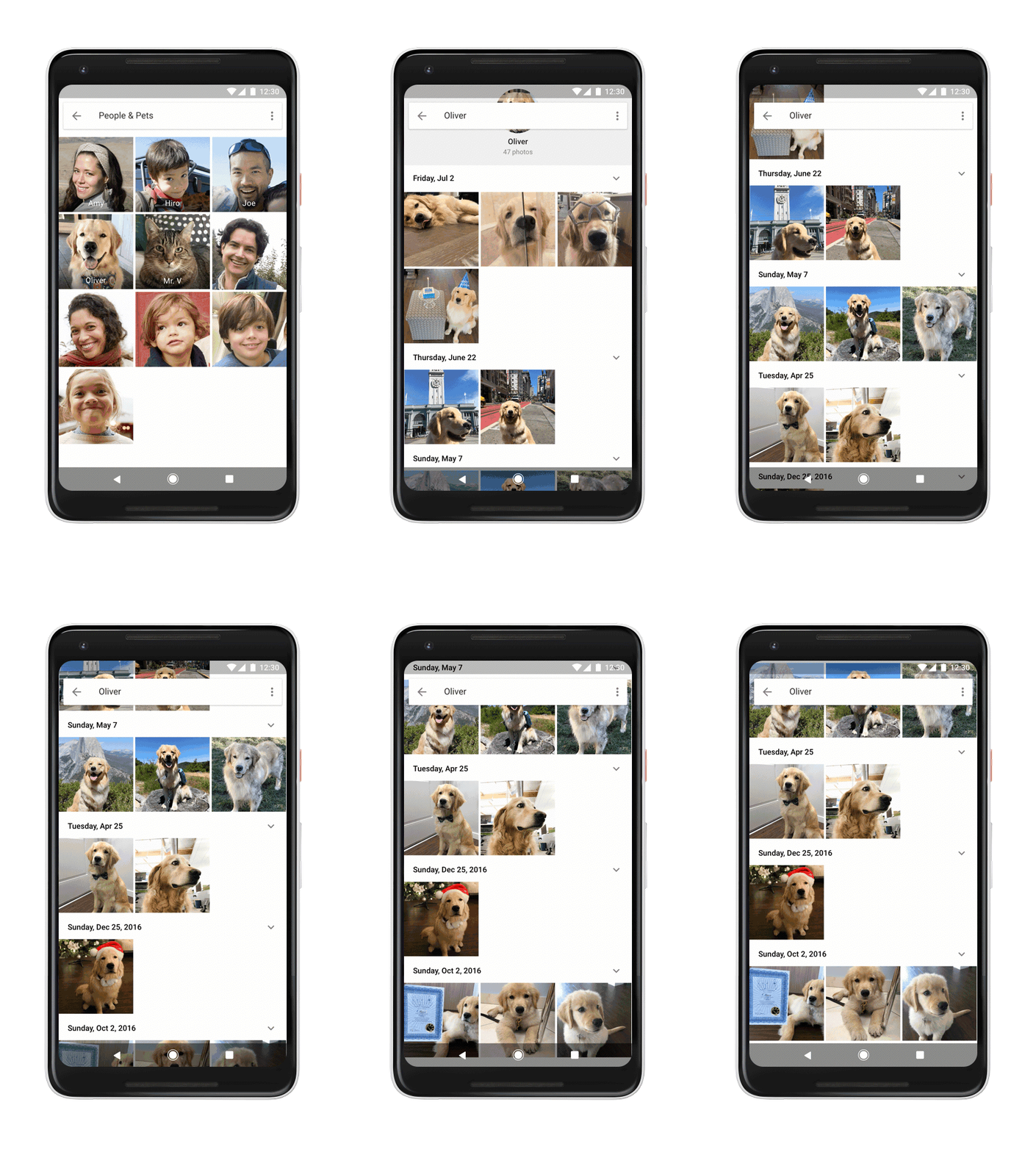
I have thousands (74,357 to be exact!) of photos featuring the important people and four-legged friends in my life—like my friend’s pup, Oliver. With Google Photos, I don't have to scroll for twenty minutes just to find the photo of him in the park. I can simply type in "Oliver park.” To set this up, head to albums and select "People and Pets." Next, name your favorites.
When I was looking at my dad’s photos over the holidays, nearly half of them were of receipts or documents. Nobody wants to see those when scrolling through vacation pictures! Google Photos can help you clear the clutter by archiving your photos. Choose the photos you want to archive, tap the three dots in the top right corner, and select “Archive” (or use the archive suggestions in the Assistant tab). If you need to see that receipt again, you can always access these photos in your “Archive” folder.
Whether you want to be more organized or better at sharing your photos in 2018, I hope these tips are helpful. If you haven’t given Google Photos a try yet, you can download it here.

Thursday, May 3, 2012

Google is introducing Google Drive!

Today, we’re introducing Google Drive—a place where you can create, share, collaborate, and keep all of your stuff. Whether you’re working with a friend on a joint research project, planning a wedding with your fiancĂ© or tracking a budget with roommates, you can do it in Drive. You can upload and access all of your files, including videos, photos, Google Docs, PDFs and beyond.
With Google Drive, you can:
  • Create and collaborate. Google Docs is built right into Google Drive, so you can work with others in real time on documents, spreadsheets and presentations. Once you choose to share content with others, you can add and reply to comments on anything (PDF, image, video file, etc.) and receive notifications when other people comment on shared items.
  • Store everything safely and access it anywhere (especially while on the go). All your stuff is just... there. You can access your stuff from anywhere—on the web, in your home, at the office, while running errands and from all of your devices. You can install Drive on your Mac or PC and can download the Drive app to your Android phone or tablet. We’re also working hard on a Drive app for your iOS devices. And regardless of platform, blind users can access Drive with a screen reader.
  • Search everything. Search by keyword and filter by file type, owner and more. Drive can even recognize text in scanned documents using Optical Character Recognition (OCR) technology. Let’s say you upload a scanned image of an old newspaper clipping. You can search for a word from the text of the actual article. We also use image recognition so that if you drag and drop photos from your Grand Canyon trip into Drive, you can later search for [grand canyon] and photos of its gorges should pop up. This technology is still in its early stages, and we expect it to get better over time.
You can get started with 5GB of storage for free—that’s enough to store the high-res photos of your trip to the Mt. Everest, scanned copies of your grandparents’ love letters or a career’s worth of business proposals, and still have space for the novel you’re working on. You can choose to upgrade to 25GB for $2.49/month, 100GB for $4.99/month or even 1TB for $49.99/month. When you upgrade to a paid account, your Gmail account storage will also expand to 25GB.Drive is built to work seamlessly with your overall Google experience. You can attach photos from Drive to posts in Google+, and soon you’ll be able to attach stuff from Drive directly to emails in Gmail. Drive is also an open platform, so we’re working with many third-party developers so you can do things like send faxes, edit videos and create website mockups directly from Drive. To install these apps, visit the Chrome Web Store—and look out for even more useful apps in the future. This is just the beginning for Google Drive; there’s a lot more to come. Get started with Drive today at drive.google.com/start and follow us on Google Plus.

Wednesday, September 21, 2011

Images will look more beautiful in blogger

Introducing Lightbox, the latest in a series of Blogger updates aimed at giving you an improved and modernized blogging experience. Lightbox is a whole new way to interact with photos. When clicked, images now expand into a shiny new overlay that displays them at their full size for optimal viewing.

Once an image is opened in the lightbox view, any other images from the same post will now appear as thumbnails along the bottom, which can be easily browsed by clicking the arrow keys on the left or right side of the lightbox.

This feature is automatically enabled for all blogs, which means you can see the lightbox view in action right now by clicking one of the images below.


(Creative Commons photos taken from http://www.fotopedia.com/)

If you’ve custom-coded your image HTML so that images function as hyperlinks, then the lightbox view will not display and your original image hyperlink will work as expected.

Your images never looked so good!

LinkWithin

Related Posts Plugin for WordPress, Blogger...