Jobs in Pakistan: http:jobs.pakcat.com/

Showing posts with label Chrome. Show all posts

Wednesday, April 1, 2015

Introducing #ChromeSelfie

Have you ever read an article that made your jaw drop or seen a funny clip that made you laugh until you cried? Now, #ChromeSelfie lets you show your friends exactly how you feel. 

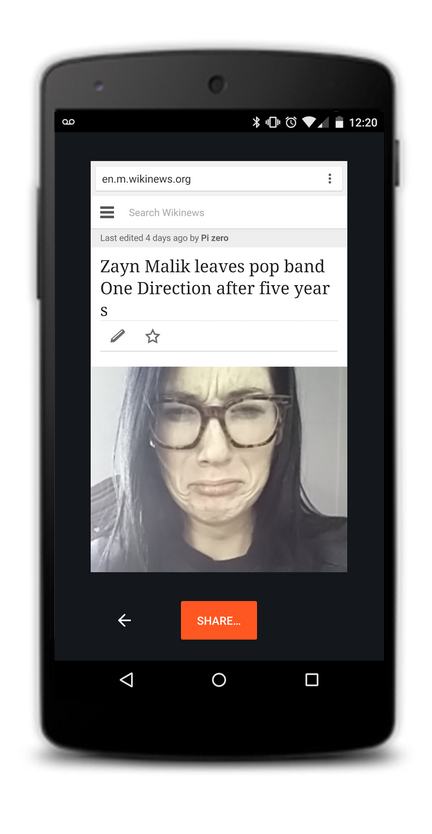
If you’re a selfie fanatic like me you've probably sent a lot of selfies in reaction to articles in the past, but it takes a lot of time and hassle to exit Chrome, open the camera and snap a pic. In fact, with so much of our time spent browsing online, most Chrome users lose up to 6 hours of selfie-taking time every day! And we think it’s a tragedy that your reactions, as well as luscious lashes and beautiful brows, are going uncaptured. With #ChromeSelfie you can share sites with your family and friends on social media and via instant messages, along with a handsome selfie instead of cumbersome text. 
Screen Shot 2015-03-30 at 12.23.29 PM.png

Source: Wikinews

As a pioneering platform, Chrome on mobile is committed to being at the forefront of innovation in the selfie space. One #ChromeSelfie can easily replace dozens of words, improving efficiency and comprehension. Starting today, when you open Chrome on your mobile you’ll see a promo and with just a few clicks you can share your reaction with your friends.

Friday, December 14, 2012

Search other websites from Chrome’s omnibox

Do you know that you can search other websites, such as +YouTube, from Chrome’s omnibox?
Chrome automatically saves a list of the search engines you come across while browsing. So, if you visit http://www.youtube.com, Chrome will add the YouTube search engine to your list of search engines. And, from then on, you’ll be able to search YouTube directly from the omnibox by typing http://www.youtube.com, pressing space, and adding your search terms. If you want to view, update, or modify your search engines, follow the path Chrome Menu > Settings >Manage search engines.

ProTip: On the Manage search engines page you can also define keywords for websites to save yourself some typing; for instance, typing “yt” could be a shortcut for http://www.youtube.com.

Thursday, September 13, 2012

Chrome for Android is now more safer


Security is one of the core principles of Chrome, and as mobile usage proliferates, we’re committed to providing users a safe browsing experience regardless of the device they're on. With today's Chrome for Android update on Google Play, your browsing experience on Android just got safer. 

This release strengthens Chrome for Android’s sandbox technology, which helps ensure malicious mobile websites are contained and do not impact the entire browser. This is made possible by the innovative multi-process architecture in Chrome for Android, in conjunction with Android’s User ID (UID) isolation technology. This more in-depth sandboxing capability will be automatically used for devices with Android 4.1, Jellybean. 
This update will also fix a number of bugs and is available to users with Android 4.0, Ice Cream Sandwich and up. We hope you enjoy this update and continue to enjoy the speed, simplicity and security that Chrome is known for wherever you go.  

Thursday, May 3, 2012

Google is introducing Google Drive!

Today, we’re introducing Google Drive—a place where you can create, share, collaborate, and keep all of your stuff. Whether you’re working with a friend on a joint research project, planning a wedding with your fiancĂ© or tracking a budget with roommates, you can do it in Drive. You can upload and access all of your files, including videos, photos, Google Docs, PDFs and beyond.
With Google Drive, you can:
  • Create and collaborate. Google Docs is built right into Google Drive, so you can work with others in real time on documents, spreadsheets and presentations. Once you choose to share content with others, you can add and reply to comments on anything (PDF, image, video file, etc.) and receive notifications when other people comment on shared items.
  • Store everything safely and access it anywhere (especially while on the go). All your stuff is just... there. You can access your stuff from anywhere—on the web, in your home, at the office, while running errands and from all of your devices. You can install Drive on your Mac or PC and can download the Drive app to your Android phone or tablet. We’re also working hard on a Drive app for your iOS devices. And regardless of platform, blind users can access Drive with a screen reader.
  • Search everything. Search by keyword and filter by file type, owner and more. Drive can even recognize text in scanned documents using Optical Character Recognition (OCR) technology. Let’s say you upload a scanned image of an old newspaper clipping. You can search for a word from the text of the actual article. We also use image recognition so that if you drag and drop photos from your Grand Canyon trip into Drive, you can later search for [grand canyon] and photos of its gorges should pop up. This technology is still in its early stages, and we expect it to get better over time.
You can get started with 5GB of storage for free—that’s enough to store the high-res photos of your trip to the Mt. Everest, scanned copies of your grandparents’ love letters or a career’s worth of business proposals, and still have space for the novel you’re working on. You can choose to upgrade to 25GB for $2.49/month, 100GB for $4.99/month or even 1TB for $49.99/month. When you upgrade to a paid account, your Gmail account storage will also expand to 25GB.Drive is built to work seamlessly with your overall Google experience. You can attach photos from Drive to posts in Google+, and soon you’ll be able to attach stuff from Drive directly to emails in Gmail. Drive is also an open platform, so we’re working with many third-party developers so you can do things like send faxes, edit videos and create website mockups directly from Drive. To install these apps, visit the Chrome Web Store—and look out for even more useful apps in the future. This is just the beginning for Google Drive; there’s a lot more to come. Get started with Drive today at drive.google.com/start and follow us on Google Plus.

Thursday, February 9, 2012

Faster browsing, safer downloading with chrome

When I visit my favorite sandwich shop, I always order the same thing: a chicken cashew salad sandwich on whole wheat (it’s awesome). Now, the owners know what I want as soon as I walk in the door. Which means they can start making it before I say a word. Which means I get my sandwich faster.

With today’s Stable release, Chrome now does the same thing. Except not with sandwiches. When you start typing in the omnibox and the URL autocompletes to a site you’re very likely to visit, Chrome will prerender the page, so it will appear faster--sometimes, even instantly--as soon as you hit Enter. To learn more, check out the post from our latest Beta release.

On the security front, Chrome now does even more to help protect you from malicious downloads. In addition to checking a list of known bad files, Chrome also does checks on executable files (like ".exe" and ".msi" files). If the executable doesn't match a whitelist, Chrome checks with Google for more information, such as whether the website you're accessing hosts a high number of malicious downloads.

In the near future, we will also begin rolling out updates to Chrome OS to further simplify the Chromebook experience. With a new image editor, Chromebook users will be able to quickly view, edit and share photos on the web. Users will also see an improved Verizon 3G activation portal, which includes the ability to set up a recurring purchase of mobile data.

If you don’t have Chrome, download it now to check out the latest features!

Wednesday, February 8, 2012

Google Docs in January: Styles, Sparklines, Google+ sharing, and more

One of the best things about working on web apps like Google Docs is that it gives us the flexibility to frequently bring you new features and improvements. Starting this month, we’re going to make some small changes to how we communicate what’s been happening in the world of Docs. Instead of writing blog posts for each and every minor update, we're going to try bundling them together monthly to give you a detailed overview of our favorite features and a short list of other notable changes to make sure you don't miss out on anything new.

On that note, we’ve got a bunch of new features that launched today, as well as some great things that improved over the month of January.

Customizable styles in documents
Giving your document consistent and beautiful formatting should be easy. Before today, if you wanted to update all the Subtitles in your document to look a particular way, you had to change each of them one at a time. That’s too many steps. Now you can restyle all your regular paragraphs, headings, or titles with just a couple clicks. For example, if you want to update all the Subtitles in your document to be a particular size, set one Subtitle to that size, select it, right click and choose Update Subtitle to match selection. This will change all the Subtitles already in your document and automatically update the style for any new Subtitles you create. Plus, with the new Options menu in the styles dropdown, you can set the current document’s styles as the default for new documents or you can load your default styles into the current document.

Sparklines in spreadsheets and more charting options
In Google spreadsheets, we’ve added more charting options and support for sparklines to make it easier to communicate data. The new options give you a bunch of tools to create more sophisticated charts including different Y-axes on either side of the chart, formatting options for the axis and title text, and all sorts of other customization for how your lines, bars, or pies are displayed. We’ve also added sparklines, which let you display line or bar charts inside of cells and are handy for presenting and comparing data in a simple, bite-sized way. In the example below, we’ve used sparklines to plot currency exchange rates over a 30-day period.


Sharing forms on Google+
Sharing the forms you create in Google Docs with the right people shouldn’t be a hassle. Today we added a Google+ share to the form editor so that you can share your forms directly with your circles with just a couple clicks.


And there’s more…
On top of today’s new features, here are some changes from January that you may have missed:
  • Adding images to your docs from a high quality stock photo gallery. Simply go to Insert > Image, select Stock photos, and then search for the images that you want.
  • A more streamlined format for document discussion notifications that batches multiple discussions into a single email.
  • Quickly opening and selecting items from specific menus with keyboard accelerators. For example, when using Google Chrome, Ctrl+Option+E on a Mac and Alt+E on Windows or Linux will open the Edit menu.
  • Copying and pasting via the context (right click) menu in documents when you have the Chrome App installed.
  • Easily adding Google drawings or Google Groups discussions to a Google Site from the Insert menu.
  • Progress bars while uploading files to Google Sites.
  • Searching for text inside of PDFs in your documents list using Optical Character Recognition.
If you’d like to learn more about what we’ve been up to in January, I’ll be doing a Hangout On Air later this week this to talk about these changes and listen to your feedback. Stop by our Community Manager Teresa’s Google+ page on Thursday, February 9 at 12 p.m. EST (Pakistan Time 10 p.m)  to tune in.

Wednesday, February 1, 2012

How to add new users to Google Chrome

Adding new users to Chrome lets you keep everyone's Chrome stuff separate on the same computer. Just go to "Options" ("Preferences" on a Mac), click "Personal Stuff", and click "Add New User".

For demo watch this video!


Tuesday, January 24, 2012

Chrome keyboard shortcuts for Windows - I

Tab and window shortcuts

Ctrl+NOpens a new window.
Ctrl+TOpens a new tab.
Ctrl+Shift+NOpens a new window in incognito mode.
Press Ctrl+O, then select file.Opens a file from your computer in Google Chrome.
Press Ctrl and click a link. Or click a link with your middle mouse button (or mousewheel).Opens the link in a new tab in the background .
Press Ctrl+Shift and click a link. Or press Shift and click a link with your middle mouse button (or mousewheel).Opens the link in a new tab and switches to the newly opened tab.
Press Shift and click a link.Opens the link in a new window.
Ctrl+Shift+TReopens the last tab you've closed. Google Chrome remembers the last 10 tabs you've closed.
Drag a link to a tab.Opens the link in the tab.
Drag a link to a blank area on the tab strip.Opens the link in a new tab.
Drag a tab out of the tab strip.Opens the tab in a new window.
Drag a tab out of the tab strip and into an existing window.Opens the tab in the existing window.
Press Esc while dragging a tab.Returns the tab to its original position.
Ctrl+1 through Ctrl+8Switches to the tab at the specified position number on the tab strip.
Ctrl+9Switches to the last tab.
Ctrl+Tab or Ctrl+PgDownSwitches to the next tab.
Ctrl+Shift+Tab or Ctrl+PgUpSwitches to the previous tab.
Alt+F4Closes the current window.
Ctrl+W or Ctrl+F4Closes the current tab or pop-up.
Click a tab with your middle mouse button (or mousewheel).Closes the tab you clicked.
Right-click, or click and hold either the Back or Forward arrow in the browser toolbar.Displays your browsing history in the tab.
Press Backspace, or Alt and the left arrow together.Goes to the previous page in your browsing history for the tab.
Press Shift+Backspace, or Alt and the right arrow together.Goes to the next page in your browsing history for the tab.
Press Ctrl and click either the Back arrow, Forward arrow, or Go button in the toolbar. Or click either button with your middle mouse button (or mousewheel).Opens the button destination in a new tab in the background.
Double-click the blank area on the tab strip.Maximizes or minimizes the window.
Alt+HomeOpens your homepage in your current window.

Thursday, December 29, 2011

How to use the New Tab page on Chrome Browser


The New Tab page is what you see when you (you guessed it) open a new tab in Google Chrome. It’s designed to get you to your favorite apps and sites, as quickly as possible. To open the New Tab page, click the new tab button icon next to the last tab at the top of the browser window. You can also use the keyboard shortcuts Ctrl+T and (Mac:⌘-T) to open the page.

Watch a quick demonstration of the New Tab page below

 Apps
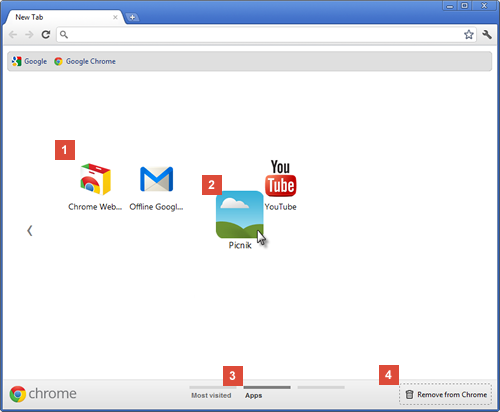
Icons for the apps you’ve installed from the Chrome Web Store appear here. Just click an icon to open the app.

If you've installed apps in Google Chrome on another computer, you can Sign in to Chrome and enable sync to automatically add those apps to the New Tab page on the computer you're using.

To change how an app should be opened, right-click the app icon and select "Open as a regular tab," "Open as a pinned tab," or "Open in full screen." For additional settings, right-click the app and select "Options."
 Move app icons
You can reorder the app icons by clicking and dragging the icons in the "Apps" section. You can also move an app, a webpage, a most visited, or a bookmark to another app section by clicking and dragging the icon and moving it to the section’s label at the bottom of the page.

You can also move an app to a new section. Click an app and start dragging to the bottom of the page. A new blank section will appear for you to drop the app into.
 Label a section
You can rename a section by double-clicking the label and typing in a new name.
 Remove an app or a most visited site
To uninstall an app from Chrome, right-click the app and select Remove from Chrome. Alternatively, when you click and drag an app, the “Remove from Chrome” trash can appears at the lower-right hand corner. Move the app to the button to uninstall.

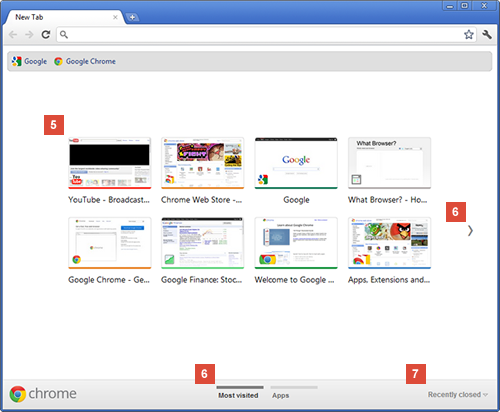
To remove a most visited site, click and drag the thumbnail to the "Remove from Chrome" trash can. Alternatively, you can remove it by clicking the X icon in the upper right corner of the thumbnail.
New Tab page
 Most visited
Thumbnails of the websites you visit the most are shown here. Just click a thumbnail to visit the site.
 Navigate between sections
To navigate between sections, click the section’s label at the bottom of the page, or you can click the left or the right  arrow icons on the sides of the page to go one section to the left or right.
 Recently closed
Click "Recently closed" at the bottom right of the page to restore a closed tab or window.
New Tab page

Friday, November 25, 2011

This the season for Chromebooks

The Chrome team elves have been busy packing a few goodies into Chromebooks in time for the upcoming holiday season.

A simple, streamlined user interface

From the moment you hit the power button and watch your Chromebook boot up in eight seconds flat, you’ll notice that the operating system got a bit of a facelift. For example, the Chromebook now sports a fresh, clean login experience.


We’ve also revamped the New Tab page to make it easier to manage your apps, bookmarks and most visited sites. By popular demand, we’ve added a few handy new shortcuts to the New Tab page: a shortcut to the File Manager on your Chromebook, as well as to music apps and games in the Chrome Web Store.


You may have also noticed, we recently gave the Chrome Web Store a new look, so that you can easily scan the wall of images to discover fun and useful apps and extensions.

Hassle-free for the holidays

We’ve heard from many of you that one of the things you enjoy most about the Chromebook is its hassle-free simplicity. If you’re someone who’s often called upon to provide tech support when you’re home for the holidays like I am, you’ll be happy to know that the Chromebook gets your loved ones up and going on the web quickly, without the usual pains of computing like seemingly endless boot times and setup manuals. With that in mind, we wanted to share a few updates to the lineup of Chromebooks that make them more giftable to loved ones.

For folks in the United States, Samsung is introducing a sleek, black version of its Wi-Fi only Samsung Chromebook Series 5.
We’ve also been working closely with our partners to continually improve the overall Chromebook experience while making them even more affordable. So, we’re excited to share that beginning this week Acer and Samsung Chromebooks will be available starting at $299. The updated prices will be available through our online retail partners.

Lastly, if you’re in the U.S. and you’d like to take a Chromebook for a test drive, visit the Samsung Experience in New York City or check one out when flying with Virgin America. We’re excited to hear your feedback, as we continue to build a faster, simpler and more secure experience on a computer that always gets better. In the meantime, we’ll leave you with one in a series of new film shorts that highlight some of the reasons why we think Chromebooks make a great holiday gift.

Thursday, July 28, 2011

Google Chrome Thailand: Dog Lovers

An organization in Bangkok, Thailand uses the web to find new homes for abandoned street dogs.


Thursday, July 21, 2011

This week in Docs and Sites: A spreadsheets shortcuts menu, PPTX support and more

This week, we’re introducing a number of enhancements to Google Docs and Sites: a spreadsheets shortcuts menu, support for PPTX conversion, a new RSS gadget, and improved mobile rendering for Sites.

Spreadsheets shortcuts
Although shortcuts have long been available in your Google spreadsheets, we've added a shortcuts menu to spreadsheets to make them easier to find -- saving you even more time. Hit Ctrl+/ (or Cmd+/ on a Mac) to pull up the list of shortcuts and learn new ways to sharpen your spreadsheet skills. Remember that shortcuts can vary depend on the operating system and browser you're using -- the example below is the menu you’d see if you were using a Chrome browser on a Mac.


Support for conversion of PPTX files to Google presentations
Starting today, you can convert PPTX files to Google presentations by either uploading the file from your desktop or converting the file from your documents list. Just follow the same simple steps as you normally would when converting files to Google Docs formats.

Better customization for your RSS Gadget in Sites
We’ve also added a new RSS gadget for Google Sites to our “Featured” gallery.

The new RSS gadget gives you complete control over the appearance of the gadget: You can customize any aspect of the feed, including font, color, size, number of items to display, and post length.

To set your gadget, go to Insert > More Gadgets > Featured, and look for RSS Feed.

Improved mobile rendering


After we released our initial version of Google Sites automatic mobile rendering, you enabled the option for over 50,000 sites, making it clear that you’re looking for a better way to easily publish content for mobile devices.

Based on what you’ve told us, we’re adding the additional behaviors to make automatic mobile rendering on Google Sites even better, including:

Images and header logos automatically scale in mobile mode
Gadgets and text boxes have widths that fit mobile devices
Pages with multi-column layouts stack columns vertically on mobile
BeforeAfter

Thanks for continuing to let us know what you think about our products -- these changes wouldn’t be possible without you.

Wednesday, July 20, 2011

A new and improved Gmail gadget for iGoogle

With iGoogle, you can personalize your homepage with the information on the web that’s most useful and relevant to you. You can check email, watch videos, catch up on the latest news, check the weather, and more. One of the most common iGoogle requests we’ve been hearing is to update the iGoogle Gmail gadget. Because the Gmail gadget has to share space with other gadgets on the screen, the Gmail experience can be limited to an area not much larger than the size of a business card. Since we’ve already built an experience optimized for small screens with Gmail for mobile, we decided to adapt the mobile web version for iGoogle and are now rolling out an updated gadget.

Tuesday, July 5, 2011

Summer travel with a Chromebook

A Chromebook makes a great travel companion, with its 8-hour battery life, light weight, built-in Wi-Fi and available 3G. So we’ve teamed up with Virgin America and Ace Hotel to give you the chance to experience a Chromebook on your summer travels.

When you fly Virgin America from San Francisco, Chicago O’Hare, Dallas/Fort Worth or Boston, look for the Chrome Zone near your departure gate. Check out a Chromebook for free and browse away with complimentary Wi-Fi in the terminal and on your flight.


If your travel plans include a stay in the Big Apple, check into Ace Hotel New York and you’ll find a Chromebook waiting in your room. Use it anywhere, in or out of the hotel, with free Wi-Fi and 3G connectivity.


To make your trip even more enjoyable, we’ve also developed two new web apps: The Ace New York Field Guide tips you off on the hottest spots in town, from cool clubs to unique boutiques, and the Beat the Boot game which challenges you to get the highest score possible in the 8 seconds it takes to boot a Chromebook. Plus you can choose from thousands of other web apps in the Chrome Web Store.


Chromebooks arrive this Friday, July 1st at Virgin America and Ace Hotel New York, and are available for the rest of the summer. Get all the details here, and happy travels!

Wednesday, June 15, 2011

Introducing new features to Google mobile search

Our thirst for knowledge extends beyond the time we spend in front of our desktop computers. At Google, we are seeing mobile search grow at an exponential rate, increasing five-fold worldwide in just the past two years - a rate comparable to the early days of desktop Google Search. Today on mobile, we can get whatever information we’re looking for anytime, anywhere.

And I'm not just talking about looking up basic information like the weather or a stock quote, which is what people used to do in the early days of mobile search. As mobile devices have become more powerful and connected to faster networks, smartphone users are doing a surprisingly diverse set of search tasks -- from simple lookups, to tasks that involve multiple complex searches.

Tuesday, June 14, 2011

Pasting images into messages just got easier - Gmail

They say a picture is worth a thousand words, and people certainly like to spice up their emails with images. A while back, Gmail started making this easier by letting you drop images from your desktop right into the compose window.

Now, when you’re running the latest version of Google Chrome, you can paste images right from your clipboard too. So if you copy an image from the web or another email, you can paste it right into your message. This is especially handy for passing around screenshots — you don’t have to save the files any more (I’ve been using Command-Control-Shift-4 on my Mac to save screenshots directly to the clipboard). While this currently only works in Chrome, we hope to enable it on other browsers soon.

Wednesday, June 8, 2011

Ensuring your information is safe online

The Internet has been an amazing force for good in the world—opening up communications, boosting economic growth and promoting free expression. But like all technologies, it can also be used for bad things. Today, despite the efforts of Internet companies and the security community, identity theft, fraud and the hijacking of people’s email accounts are common problems online.

Bad actors take advantage of the fact that most people aren’t that tech savvy—hijacking accounts by using malware and phishing scams that trick users into sharing their passwords, or by using passwords obtained by hacking other websites. Most account hijackings are not very targeted; they are designed to steal identities, acquire financial data or send spam. But some attacks are targeted at specific individuals.

Thursday, May 5, 2011

Friday, April 29, 2011

Everybody’s talking (and translating) with Chrome

Today, we’re excited to make a nifty feature widely available in today’s new Chrome stable release: speech input through HTML.

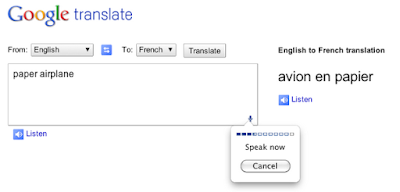
Curious about how speech input can be used in real life? Here’s one example: Using Chrome, you can now translate what you say into other languages with Google Translate. If you’re translating from English, just click on the microphone on the bottom right of the input box, speak your text, and choose the language you want to translate to. In fact, you can even click on the “Listen” feature to hear the translated words spoken back to you!


Speech input through HTML is one of many new web technologies in the browser that help make innovative and useful web applications like Google Translate’s speech feature possible. If you’d like to check out more examples of applications built using the latest and greatest web technologies in the browser, you can check out more than 200 submissions by web developers on chromeexperiments.com. If you’re not already using Chrome, don’t forget to first download Chrome at google.com/chrome.

Wednesday, April 27, 2011

Simpler file upload in Google Docs

Last November, we added the ability to drag and drop files from your desktop to the upload page, improving the ability to upload any file. Over the next few weeks, we’re releasing three additional features to make it easy to upload files to Docs: folder upload, documents list integration, and drag-and-drop upload.

To start, we’ve added folder upload via the new Upload menu in the latest versions of Chrome, Firefox and Safari.


You’ll need to install a small applet to use folder upload in Firefox and Safari. The existing folder structure is preserved on upload which means that folders within folders will also upload and become collections within collections.

Second, we’ve merged the upload page’s functionality into the documents list. When you upload files via the new drop-down menu, a window will pop up in the bottom right of your documents list and show upload progress.


Once files are uploaded, they will appear in your documents list within seconds. You can also share them from the pop-up. Uploaded files go into the currently selected collection and have visibility set to private unless the collection is shared.

Upload settings have also moved. The first time you use the new upload method, you’ll see a pop-up asking you whether you want to convert files to the Google Docs format and if you want to convert images via Optical Character Recognition (OCR). You can always return to these settings via the drop down in the upload menu or the pop-up.


Lastly, if you are using Chrome, Safari and Firefox on your Mac or PC, you’ll also be able to drag-and-drop one or more files directly into your documents list to initiate an upload. You can even drop files directly into a collection on the left. Note due to browser limitations it isn’t possible to drag-and-drop folders directly into the documents list.


If you hit your storage limit, the upload will return an error and you’ll need to delete files or purchase additional storage for Google Docs for $0.02 per GB per month ($0.25 per GB per year). Please note that the new upload capabilities don’t support the ability to select a language when converting a document via OCR (Optical Character Recognition) or select visibility settings before upload. If you’d like to use these features, you can still use the older version of the upload page by choosing Basic... from the Upload menu.

We’ll be rolling this out to everyone with personal Google Accounts over the next month in all Google Docs languages. You’ll know when the features are available to you when you see a promo at the top of your documents list.

If you have any additional questions about the upcoming changes to uploading files, check out our FAQ.

LinkWithin

Related Posts Plugin for WordPress, Blogger...